TREAT - Assessments
Completing an Assessment
Overview
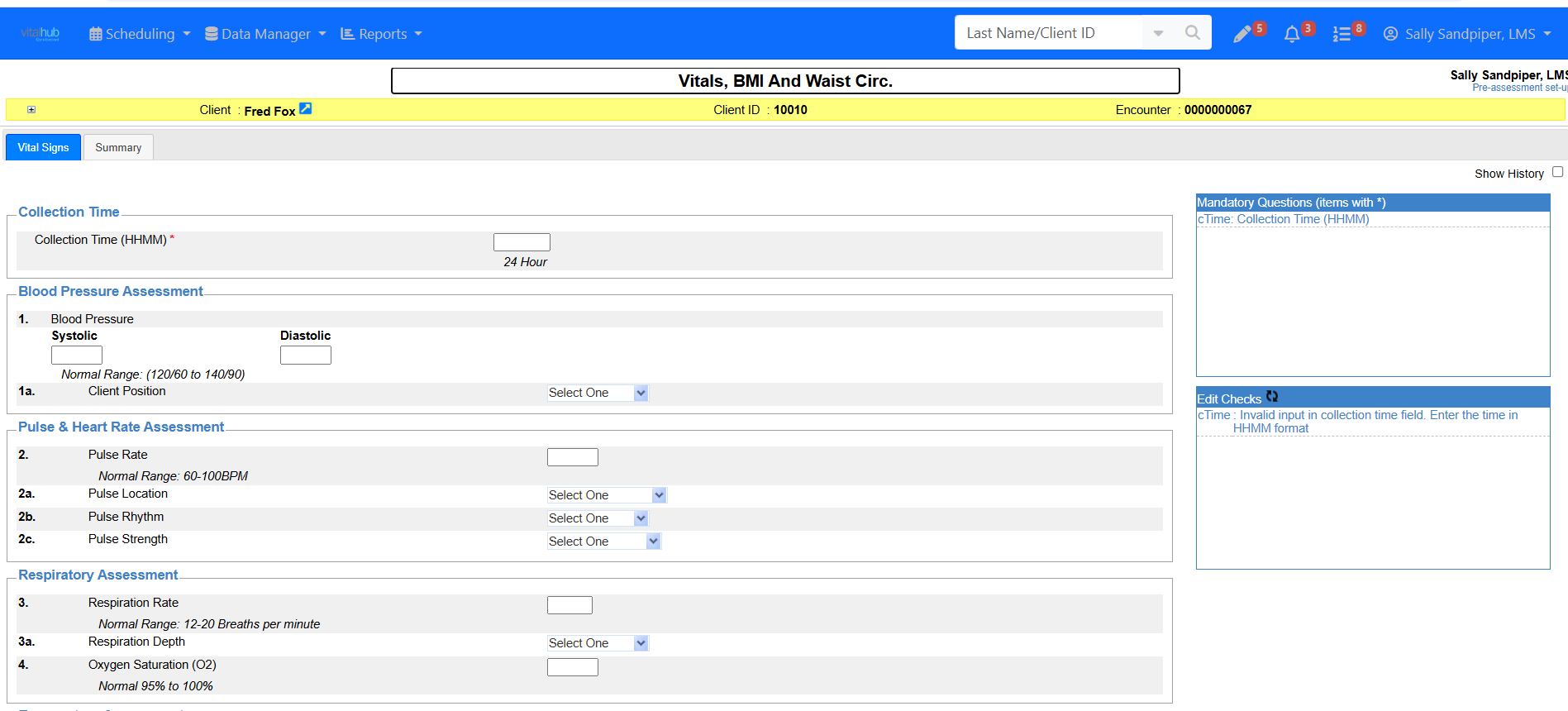
An assessment can include dropdowns, radio buttons, calendar pickers, text boxes, expandable text areas, checkboxes, and incremental search dropdowns, along with several features that connect it to the rest of the client file.
Features You May See
| Feature | How it works |
|---|---|
| Embedded widgets | Select entries that apply or add new ones. When the assessment is completed, the matching Profile widget is updated with any new entries. |
| Embedded assessments | Choose a completed assessment or add a new one. A value from it (often the date) returns to the main assessment in a read-only field. |
| Pull from Demographics | Content from Demographics can be pulled in. This is usually read-only, because Demographics stays the source of truth. |
Updating Demographics from an Assessment
To change a value that came from Demographics, select the client-name hyperlink in the yellow bar to go to Demographics, update the answer, and save. You are returned to the assessment.

Mandatory Items and Edit Checks
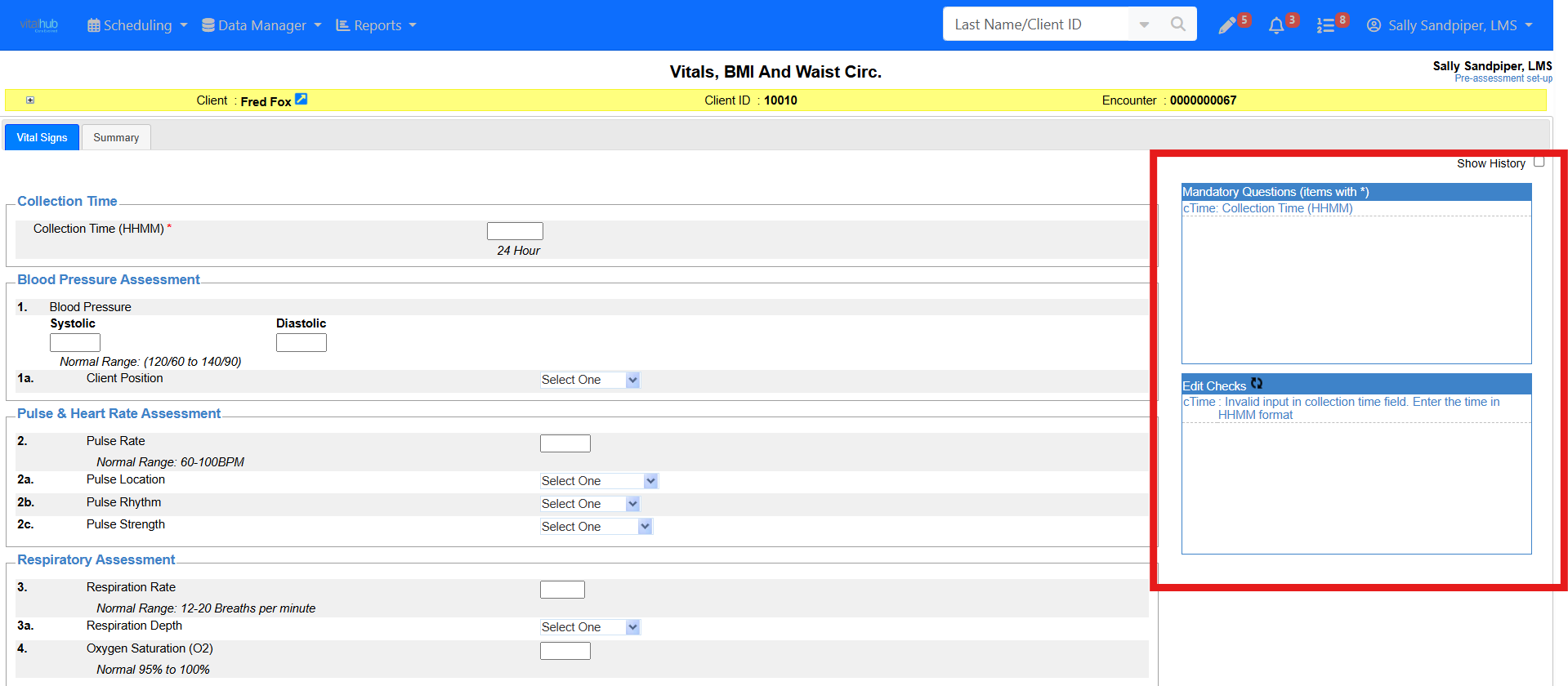
Mandatory items and edit checks are shown on the right side of the assessment and on the Summary tab. Clear them before completing the assessment.
COMPLETING AN ASSESSMENT
- From the client file, select the appropriate assessment from the available list.
- Complete the pre-assessment page by confirming the date, selecting the associated encounter, and choosing a visit type if applicable.
- Enter the required information throughout the assessment tabs, reviewing any mandatory fields or edit checks as you progress.
- Review the Summary tab to ensure all required fields have been completed and any validation errors have been addressed.
- If you need to finish the assessment later, select Save & Exit to save your work and return to it from the Existing Assessments list when ready to continue. Once all required information has been entered and reviewed, select Submit or Submit for Scoring to complete the assessment and finalize the record.

TRAINING VIDEO
Completing an Assessment - User Instructions | Author: Michael Marchese | 2026-07-17
Was this article helpful?
That’s Great!
Thank you for your feedback
Sorry! We couldn't be helpful
Thank you for your feedback
Feedback sent
We appreciate your effort and will try to fix the article