TREAT - Custom Tasks
Creating a Custom Task
Overview
Custom tasks are reminders or action items you can create related to one or more clients.
For example: assigning an assessment to someone else before you go on vacation, reminding a clerk to upload discharge information when a client returns from hospital, or reminding yourself to recheck a client's medications in three weeks.
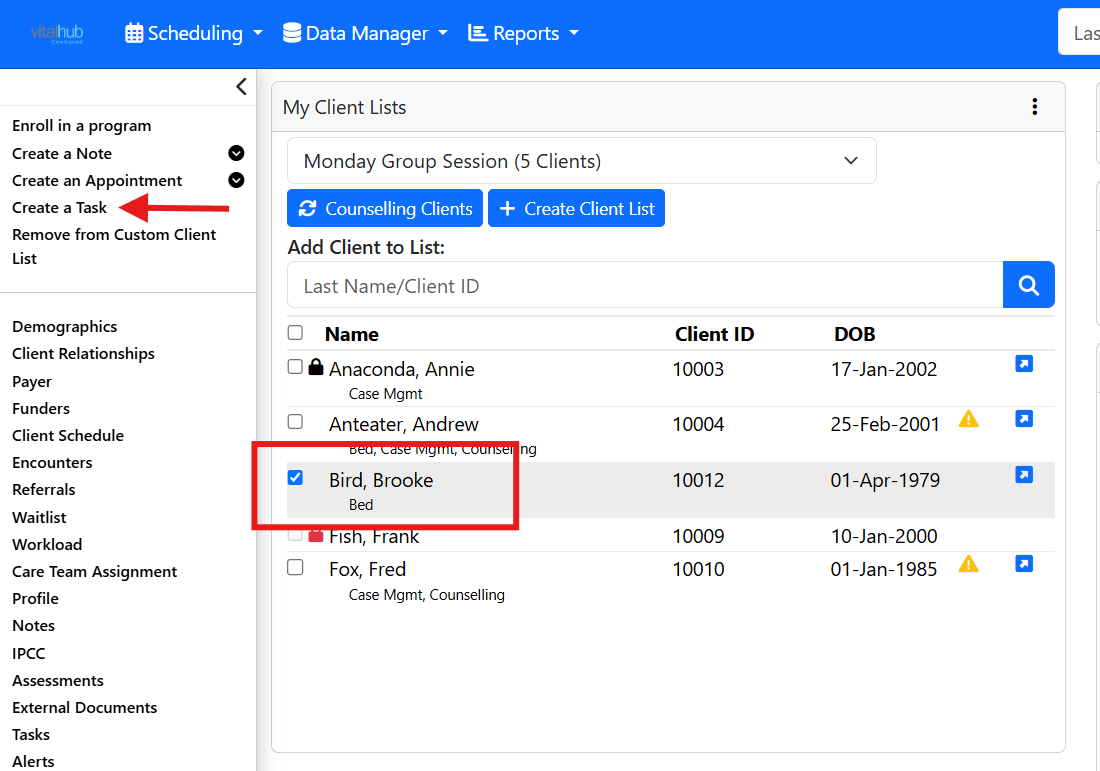
You create a custom task from a client list or client context by selecting one or more clients. The task is associated with the clients you select.
What a Custom Task Contains
- A reminder regarding one or more clients.
- A due date and optional instructions.
- An alert option.
- An assignment: yourself, specified clinicians, or a care team role.
- An action: a written reminder, an assessment, a progress note, or an external document to attach.
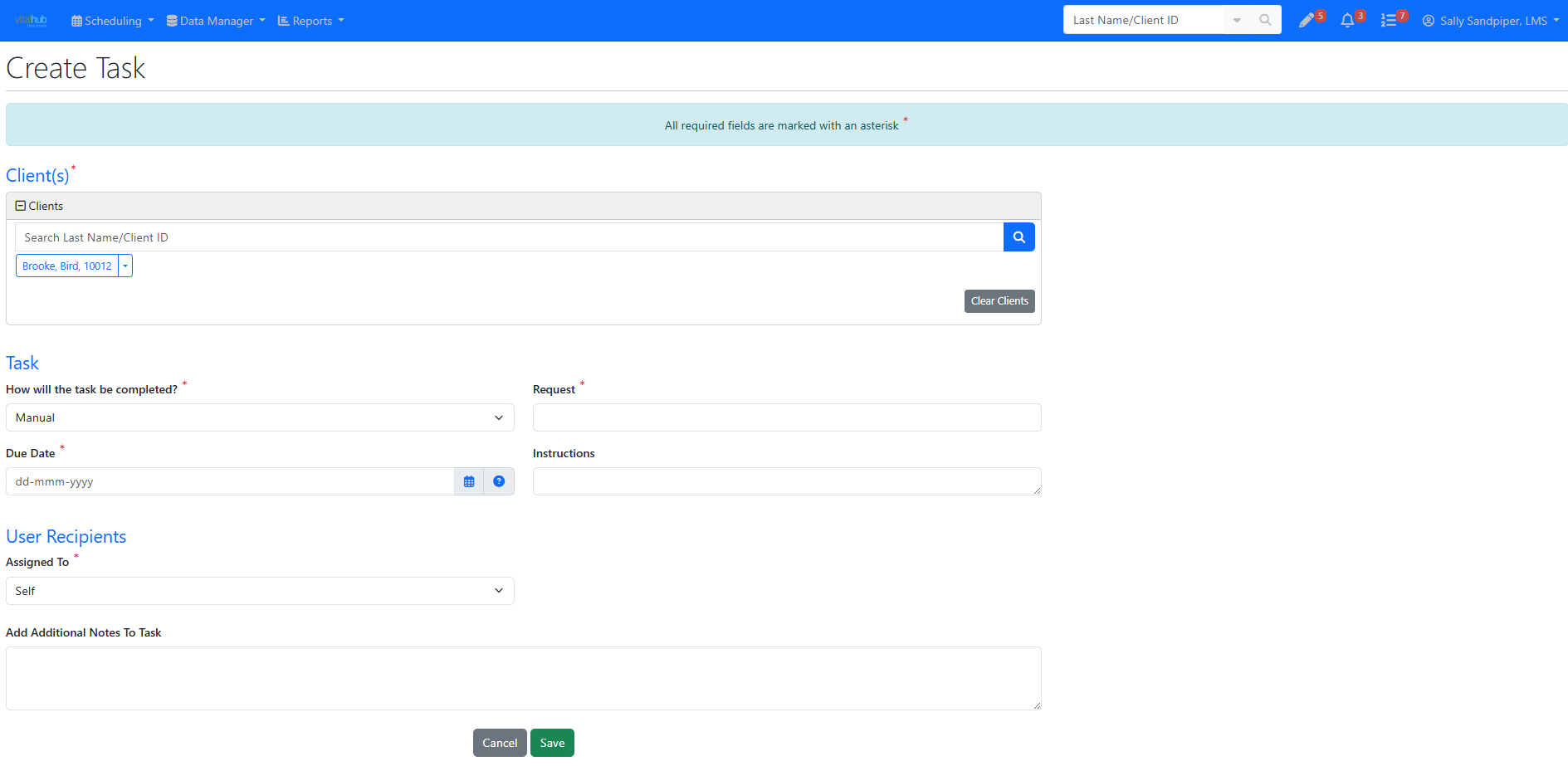
The Four Types
| Type | What it is | Instructions | TASK List |
|---|---|---|---|
| Manual | A written reminder to do something - no assessment, note, or document needed. | Optional | Information |
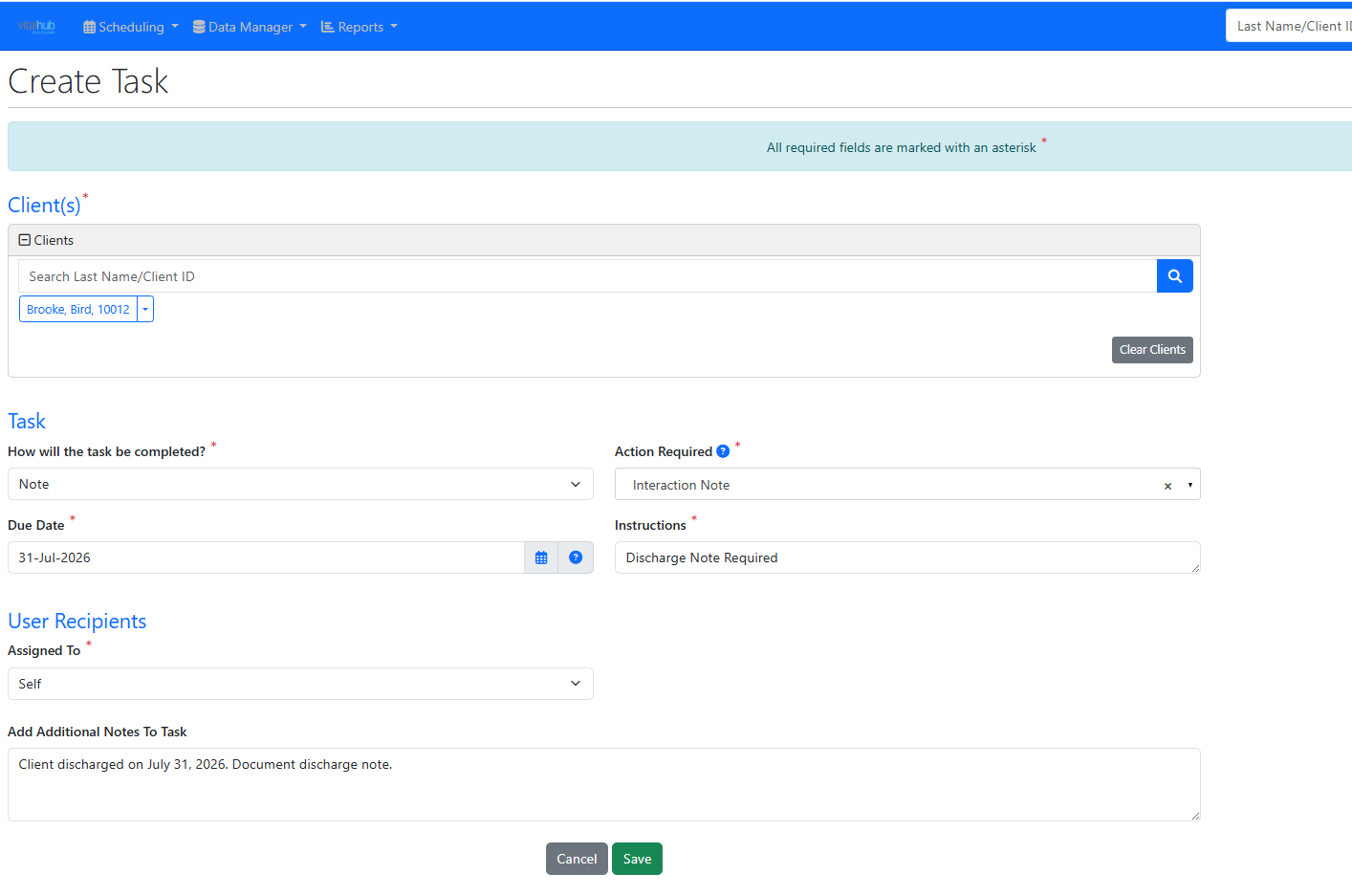
| Note | Select the note template to be written from the Action Required dropdown. All templates are available. | Mandatory | Notes |
| External Document | Select the document category; document subtype is optional. | Optional | External Documents |
| Assessment | Select initial, repeat, or discharge, then the assessment. Only assessments you can access are listed. | Optional | Assessments |
Assignment Options
| Assign to | Use when | Notes |
|---|---|---|
| Self | You are creating a reminder for yourself. | Additional notes optional. |
| Specific Clinician(s) | The task should go to one or more named clinicians. | Add clinicians with incremental search. You can also send an alert, set alert priority, and add notes. |
| Care Team Role | The task should go to everyone in a particular care team role. | Add one or more roles with incremental search. The task goes to all workers in that role. |
Creating the Task
- Select one or more clients and click Create a Task.
- On the Create Task screen, confirm the client selection. The selected clients are defaulted in; you can add or remove clients the same way as in Scheduling.
- In the Task section, choose how the task will be completed. The fields change based on your selection.
- In the User Recipient section, choose who the task is assigned to.
- Add any notes in Add Additional Notes to Task, then click SAVE and confirm.
After Saving
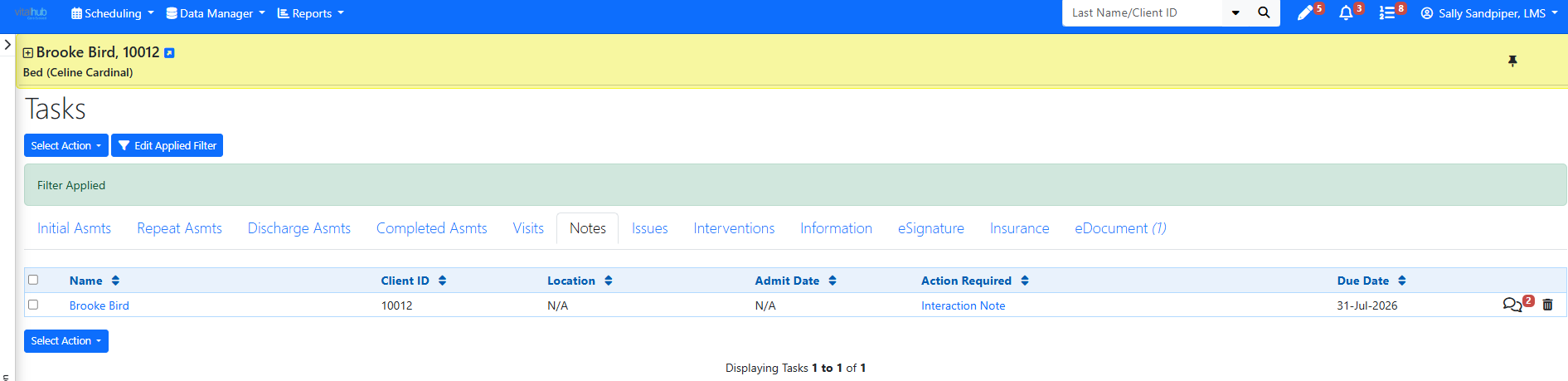
After saving, you are taken to the client's Tasks screen. If the task does not appear immediately, check the filters currently selected on the Tasks screen.
Training Video
Creating a Custom Task - User Instructions | Author: Michael Marchese | 2026-07-17
Was this article helpful?
That’s Great!
Thank you for your feedback
Sorry! We couldn't be helpful
Thank you for your feedback
Feedback sent
We appreciate your effort and will try to fix the article