TREAT - Scheduling
Understanding Scheduling and Calendars in TREAT
Overview
Scheduling can be used to book, view, edit, and cancel appointments for yourself, team, and for the clients in your care. Additionally, you can enter Workload and Activities if required.
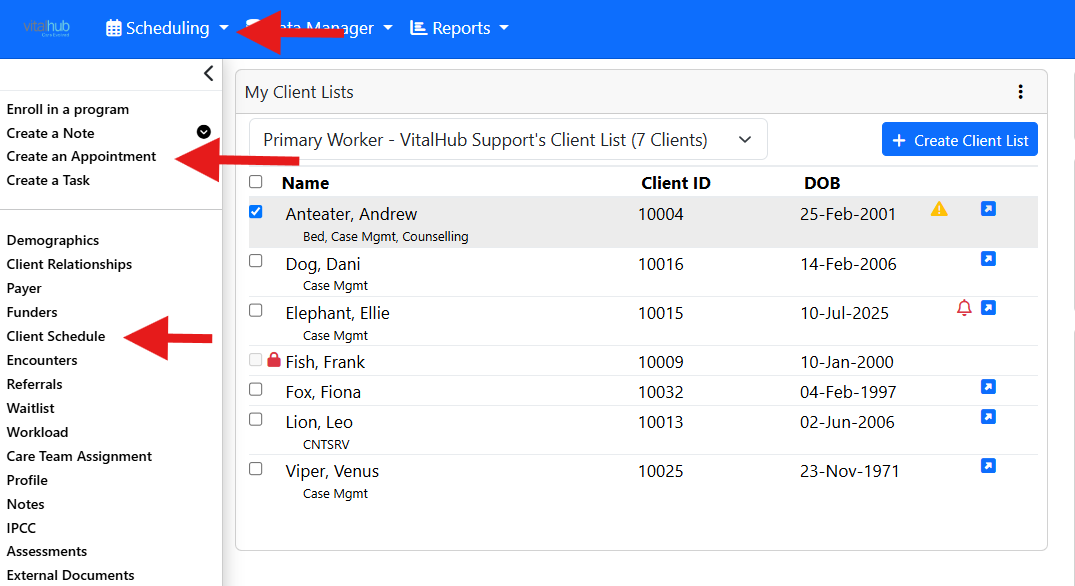
There are three ways to open a calendar: your own calendar from SCHEDULE in the blue Navigation Menu, a client's calendar from CLIENT SCHEDULE in the Left Navigation panel, and a combined view from CREATE AN APPOINTMENT in the Left Navigation panel for the client in context.
Three Ways to Start an Appointment
| Entry point | Use it when | Where |
|---|---|---|
| SCHEDULE | The appointment is for you, with or without a client. | Blue Navigation Menu |
| CLIENT SCHEDULE | The appointment is for the client in context and not necessarily with you. | Left Navigation panel |
| CREATE AN APPOINTMENT | The appointment is for you and the client in context. | Left Navigation panel |
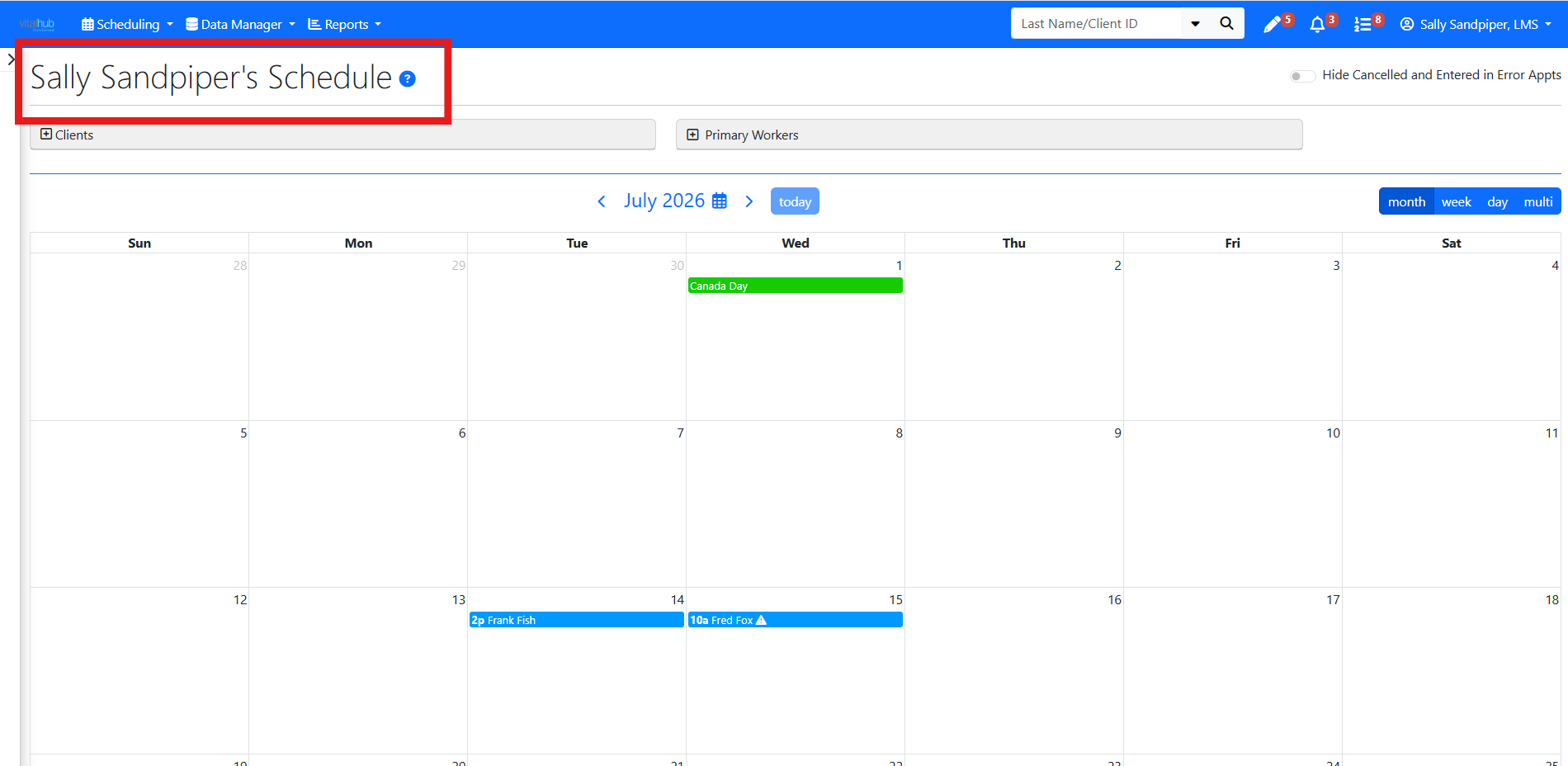
Confirming Whose Calendar You Are Viewing
The top left corner of the calendar always tells you whose calendar you are viewing and whether there is a client in context. Checking this area before you book prevents creating an appointment in the wrong calendar.
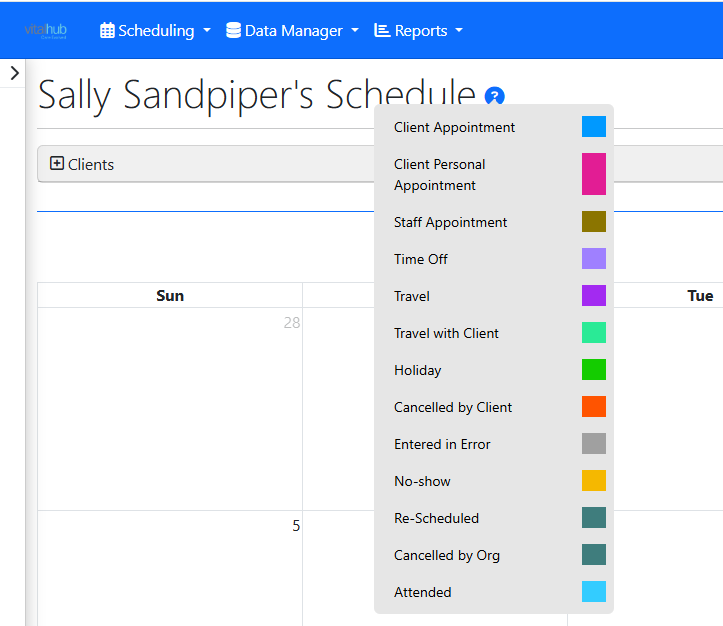
Appointment types are colour coded. To see what the colours represent, select the Help icon beside the title.
Comparing More Than One Calendar
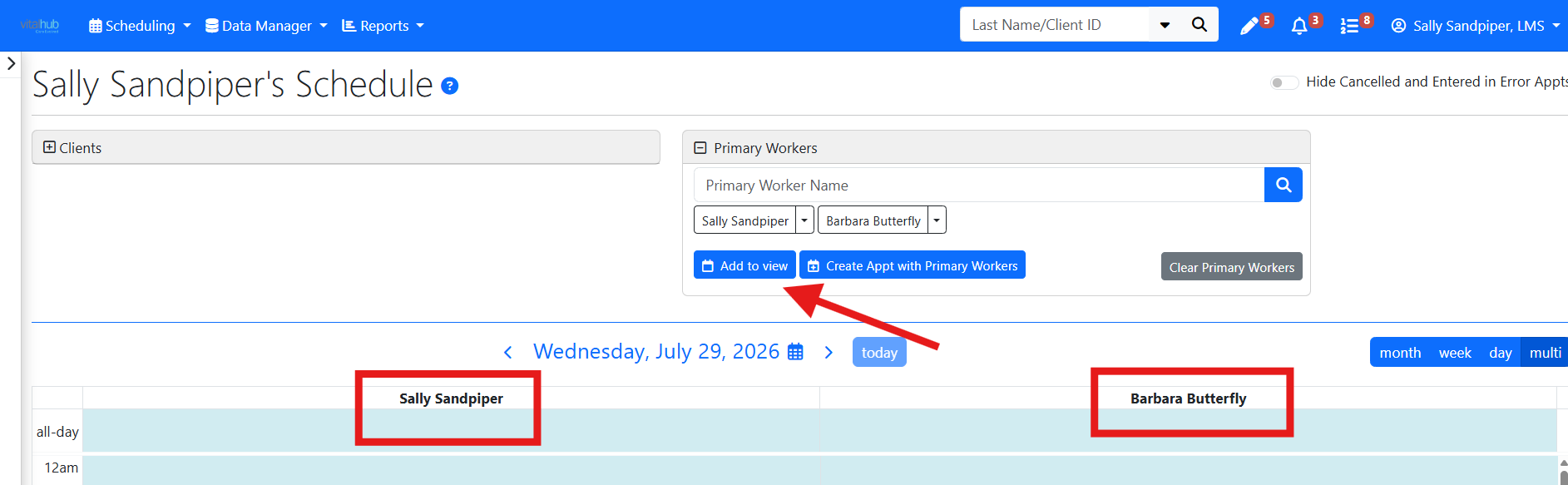
You can add another worker to your calendar to compare schedules side by side. Enter the worker's name and select ADD TO VIEW. The display changes to multi-view so you can see more than one worker's schedule at the same time.
Training Video
Understanding Scheduling and Calendars in TREAT - User Instructions | Author: Michael Marchese | 2026-07-17
Was this article helpful?
That’s Great!
Thank you for your feedback
Sorry! We couldn't be helpful
Thank you for your feedback
Feedback sent
We appreciate your effort and will try to fix the article