TREAT - Scheduling
Marking Attendance and Starting a Note
Overview
When a client attends an appointment, you update the status and can move straight into the progress note from the same screen.
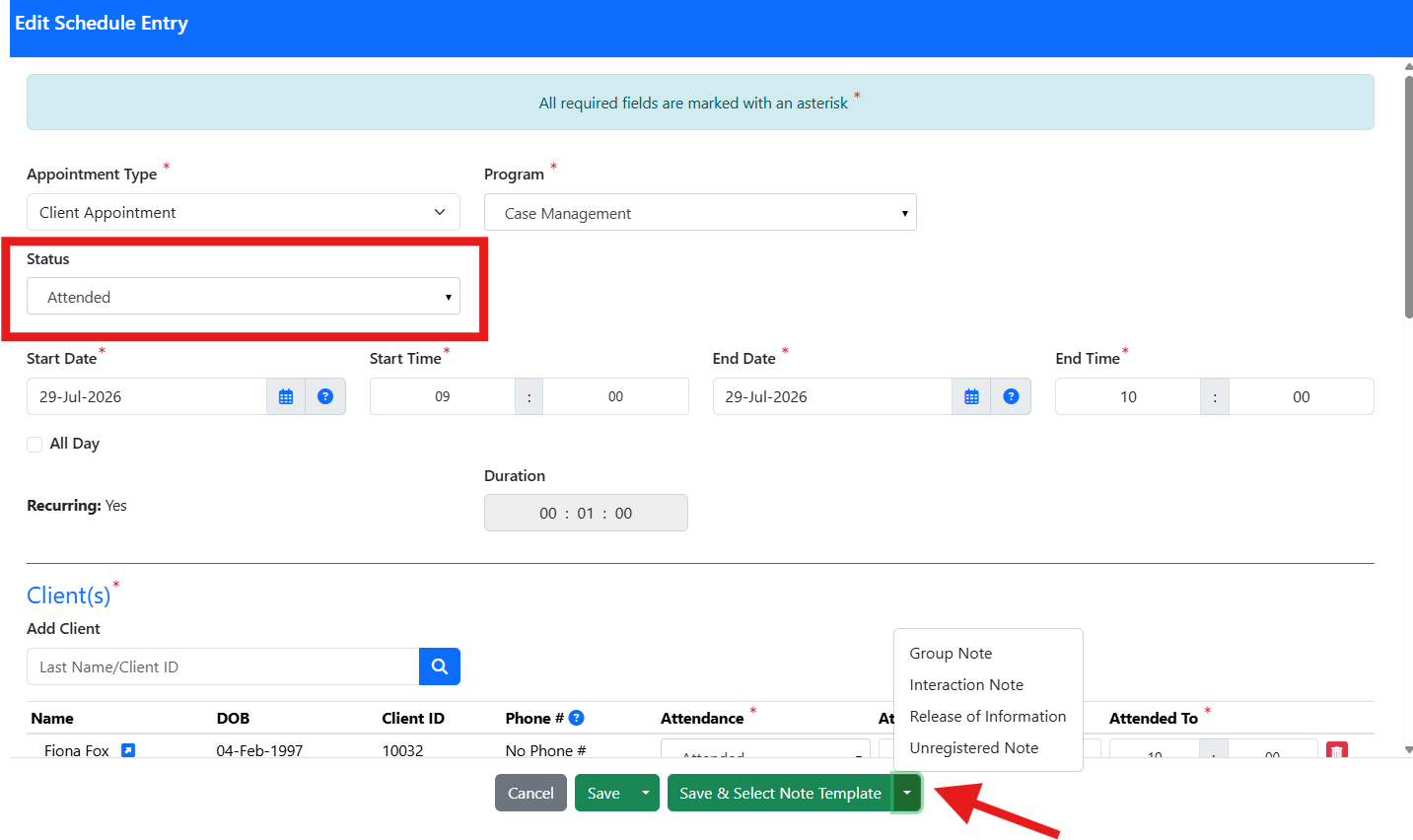
Marking an Appointment as Attended
- Edit the appointment.
- Change the status to Attended (or another applicable status).
- Select SAVE & SELECT NOTE TEMPLATE.
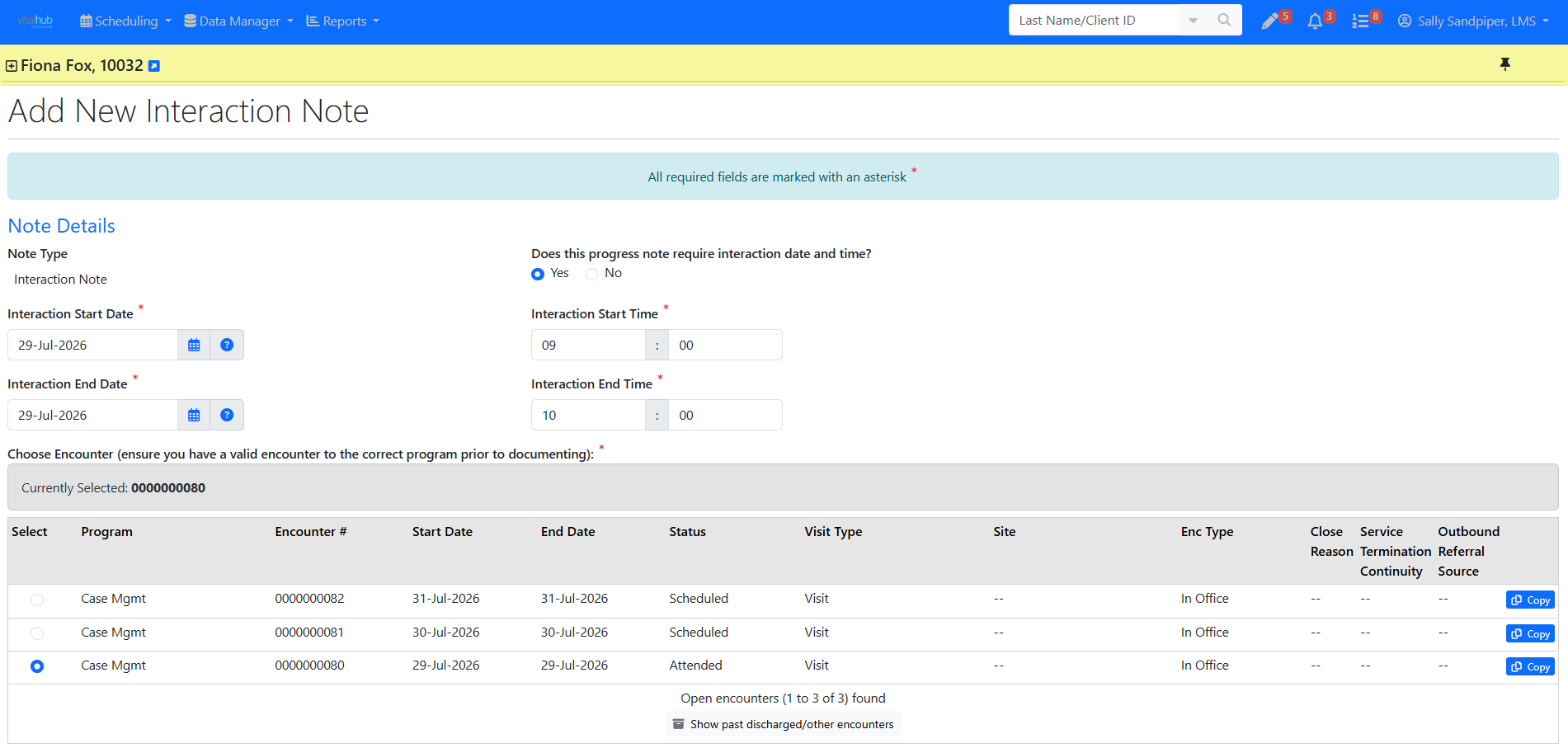
- Select the down arrow to display the associated note templates, choose the applicable template. The system will redirect you to complete the note with the appointment details autopopulated. The updates made to the appointment will be automatically saved.
Re-scheduled status. Appointments set to Re-scheduled do not display on the Encounters screen.
Training Video
Marking Attendance and Starting a Note - User Instructions | Author: Michael Marchese | 2026-07-17
Was this article helpful?
That’s Great!
Thank you for your feedback
Sorry! We couldn't be helpful
Thank you for your feedback
Feedback sent
We appreciate your effort and will try to fix the article