TREAT - Scheduling
Recurring Appointments
Overview
Recurring appointments work much like Outlook. When creating the appointment, change Recurring to Yes and select the frequency that applies to the series.
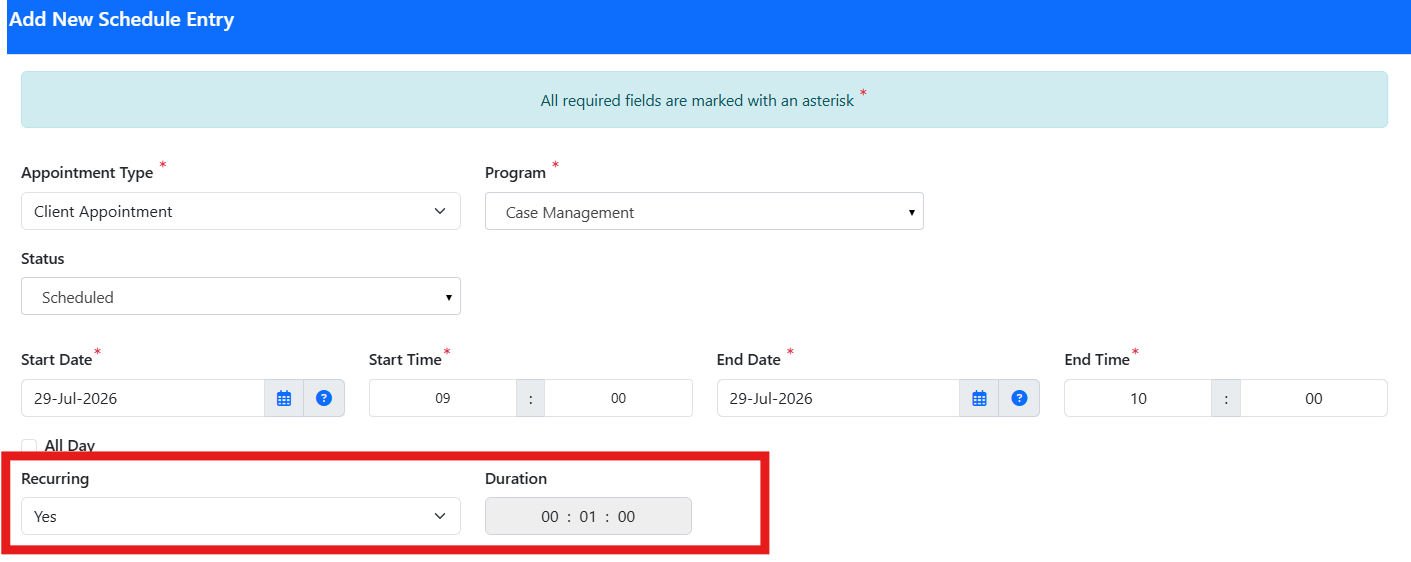
CREATE a Recurring Appointment
- Click on the desired date and time in the calendar to create a new appointment.
- Change the Recurring option to Yes to create a recurring appointment series.
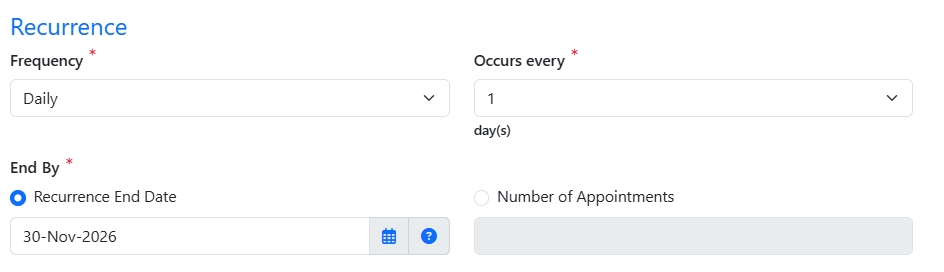
- Select the recurrence frequency and define the recurrence pattern as required (for example, daily, weekly, or monthly).
- Complete any remaining appointment details and SAVE.
Broken Links in a Series
When one future appointment in a series is changed, that appointment becomes a broken link and is no longer part of the series.
Changing the appointment time, worker, attendance status, or adding another client defines a future appointment change.
Example. If Bob has an appointment every Friday at 2 p.m. and the March 28 appointment is changed to 4 p.m., that date stays at 4 p.m. even if the rest of the future series is later changed to 3 p.m.
Training Video
Working with Recurring Appointments - User Instructions | Author: Michael Marchese | 2026-07-17
Was this article helpful?
That’s Great!
Thank you for your feedback
Sorry! We couldn't be helpful
Thank you for your feedback
Feedback sent
We appreciate your effort and will try to fix the article