TREAT - Progress Notes
Using Canned Text
Overview
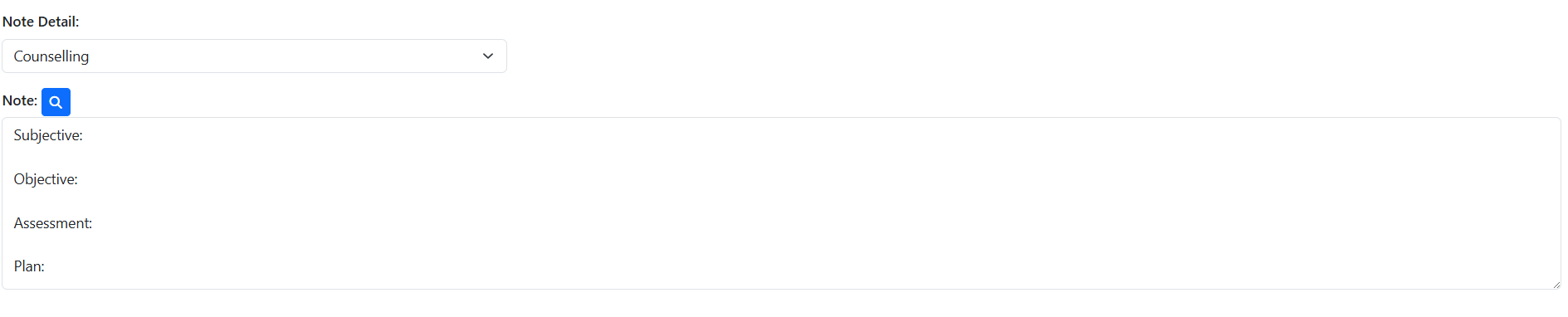
Canned Text helps streamline documentation in TREAT by providing quick access to pre-defined, commonly used content that can be inserted into notes with just a few clicks. Rather than repeatedly typing the same information, users can search for and add standardized text, improving efficiency, consistency, and documentation quality across the organization. Once inserted, the text can be used as-is or customized to reflect the client’s specific situation. Canned Text is available across all progress note templates and can be used in any applicable text field.
Adding Canned Text
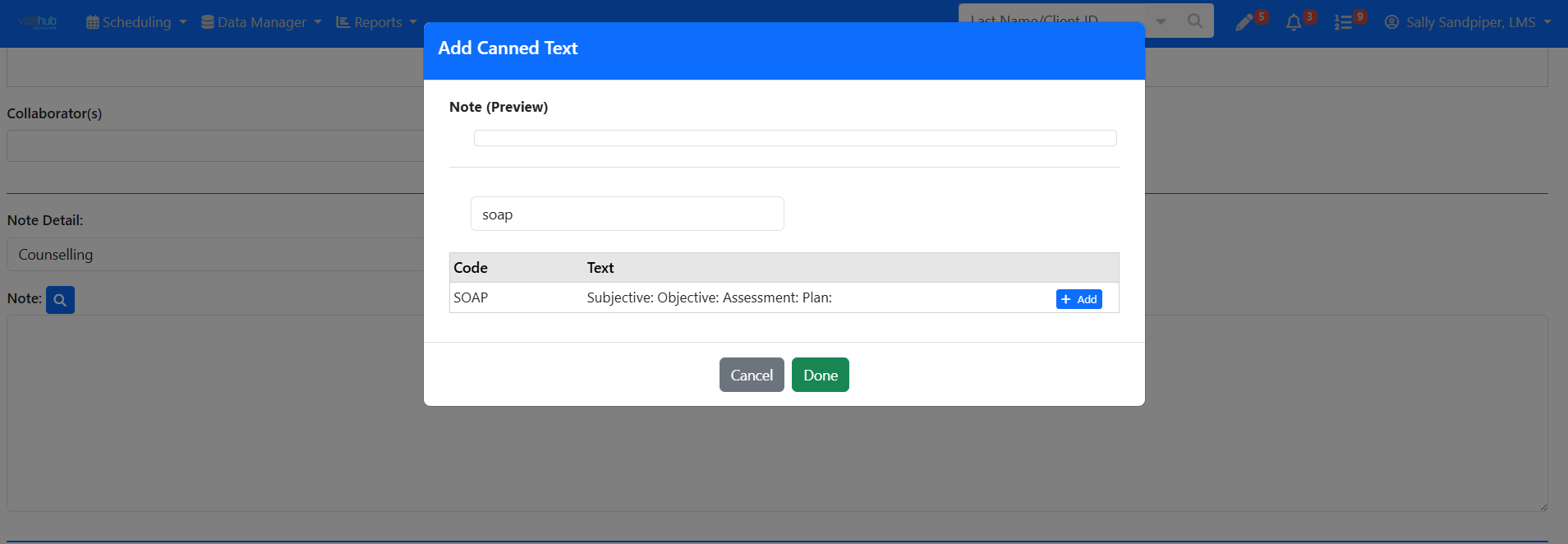
- In a text field, select the looking glass icon.
- Type the code or a partial code.
- Select the text you want with ADD.
- Select DONE.
Training Video
Using Canned Text - User Instructions | Author: Michael Marchese | 2026-07-17
Was this article helpful?
That’s Great!
Thank you for your feedback
Sorry! We couldn't be helpful
Thank you for your feedback
Feedback sent
We appreciate your effort and will try to fix the article